
Usage and Reports
The Usage section allows you to query, review, and export usage records across your entire tenant.
The Usage is accessible from the main navigation and contains two tabs: Query and Reports.
Query Tab
The Query tab provides a filterable view of tenant-wide usage records.
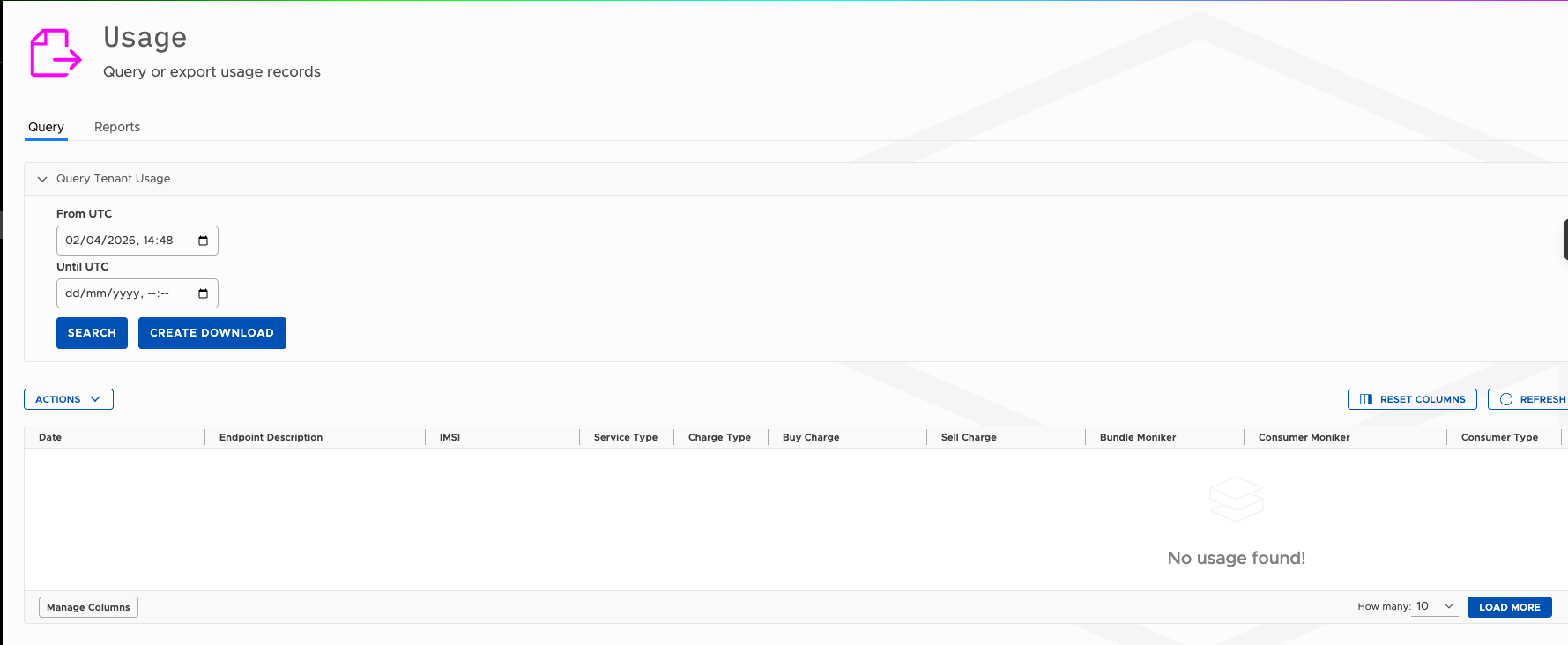
Querying Usage Records
The Query Tenant Usage panel at the top of the page contains two date/time filters:
| Field | Description |
|---|---|
| From UTC | The start of the query window (inclusive). Defaults to the current date and time. |
| Until UTC | The end of the query window (inclusive). Leave blank to query up to the present moment. |
Once your date range is set, click Search to load matching records into the results table below.
If no records exist within the selected window, the table displays "No usage found."
Results Table
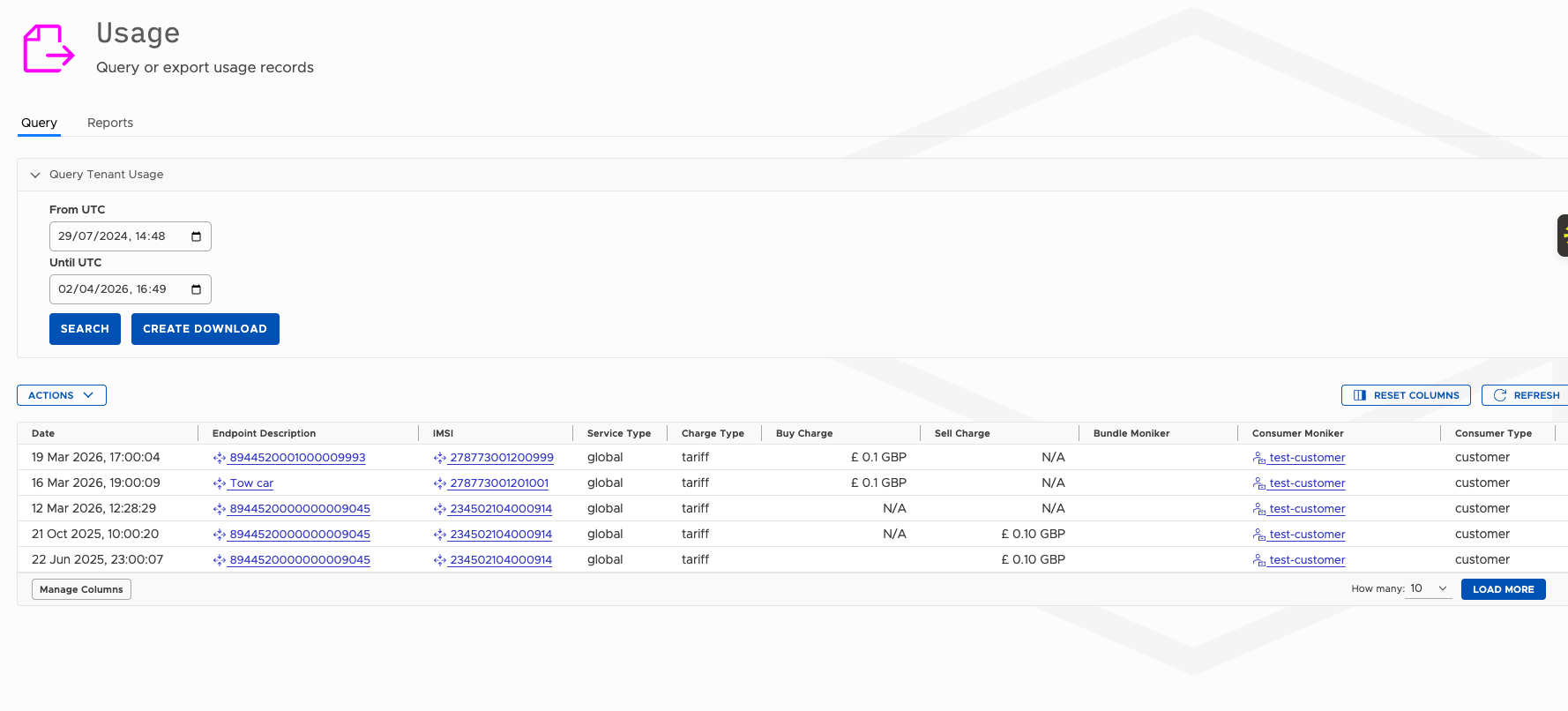
Search results are displayed in a paginated table. The default column set includes:
| Column | Description |
|---|---|
| Date | The date and time of the usage event (UTC). |
| Endpoint Description | The description or identifier of the endpoint that generated the usage. Links through to the endpoint record. |
| IMSI | The IMSI associated with the usage event. Links through to the IMSI record. |
| Service Type | The service type for the usage event (for example, global). |
| Charge Type | The charge mechanism applied (for example, tariff). |
| Buy Charge | The wholesale cost of the usage event. |
| Sell Charge | The retail charge applied to the consumer. |
| Bundle Moniker | The bundle associated with the usage event, if applicable. Displays N/A where no bundle applies. |
| Consumer Moniker | The consumer account linked to the usage event. Links through to the consumer record. |
| Consumer Type | The type of consumer (for example, customer). |
Use Manage Columns at the bottom left to customise which columns are displayed. Use Reset Columns to restore the default column set. Click Refresh to reload results without changing the query parameters.
The How many control at the bottom right sets the number of records per page (default: 10). Click Load More to retrieve additional records.
Actions
The Actions menu above the results table provides bulk operations on the current result set. Available actions depend on the records returned.
Creating a Download
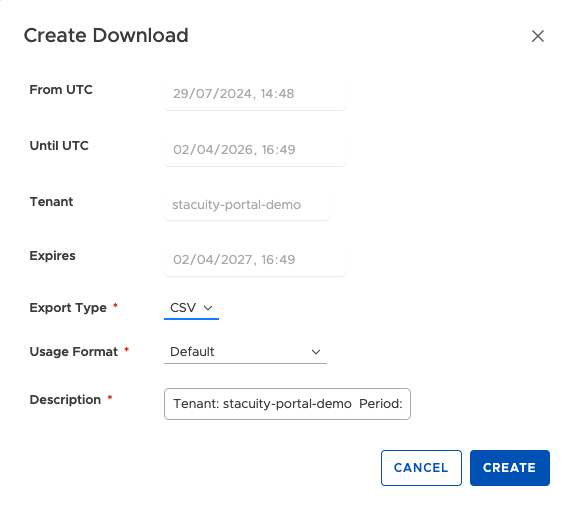
To export usage records, click Create Download. This opens a modal dialog with the following fields:
| Field | Description |
|---|---|
| From UTC | Populated from your current query window. |
| Until UTC | Populated from your current query window. |
| Tenant | The tenant identifier. Read-only. |
| Expires | The date after which the download link will no longer be available. Defaults to one year from the time of creation. |
| Export Type | The file format for the export. Options include CSV. |
| Usage Format | The schema applied to the export. Defaults to Default. |
| Description | A pre-populated description including the tenant name and period. Editable. |
Click Create to generate the download, or Cancel to close without creating one. Generated downloads are accessible from the Reports tab.
Reports Tab
The Reports tab lists all previously generated downloads for your tenant. From here you can retrieve and download export files that have been created via the Create Download function on the Query tab.
Vantiq Motors -- Example
The Vantiq Fleet operations team runs a monthly export on the first of each month, querying the previous month's usage with a From UTC of the first day of that month and an Until UTC of the last day. They export as CSV using the Default usage format and store the files in their internal billing system. The Consumer Moniker column lets them allocate charges back to each of their four divisions without any manual cross-referencing.
Updated 7 months ago