
Endpoint Groups
Logical containers that apply network configuration to all the endpoints they hold.
What is an Endpoint Group?
An Endpoint Group is where network configuration lives. Every endpoint placed into a group inherits that group's complete set of policies:
- VSlice — the isolated network environment
- Routing Policy — how and where traffic is directed
- Regional Policy — geography-based network rules
- Operator Policy (optional) — preferred or restricted mobile operators
- Event Map (optional) — which events are generated for this group
- Session Inactivity settings — how to handle idle sessions
Changing any of these on the group takes effect immediately for every endpoint in it. This is the key operational advantage: you manage groups, not individual SIMs.
Vantiq Motors — Example
Vantiq Fleet operates refrigerated HGVs across the UK and continental Europe. Rather than configuring each of 12,000 SIMs individually, they maintain four Endpoint Groups:vantiq-fleet-uk,vantiq-fleet-de,vantiq-fleet-fr, andvantiq-fleet-nl. Each group has the appropriate regional operator preferences and routes telematics data to Vantiq's private data centre via IPSec VPN. When a vehicle's usual UK route is extended to the Netherlands for a new contract, the ops team reassigns its endpoint tovantiq-fleet-nl— that's one action, applied in seconds.
Group-Based SIM Management
The group model means that all SIM management decisions are made at the group level. Before creating your first Endpoint Group, plan your group structure around your operational needs:
- By geography — one group per country or region, each with a different Operator Policy
- By traffic type — separate groups for high-bandwidth vs. low-bandwidth devices
- By lifecycle stage — a staging group for newly provisioned devices, a production group for commissioned ones
- By customer or division — one group per business unit, keeping usage and events separate
There is no limit on the number of Endpoint Groups. A single endpoint belongs to one Primary group (and optionally one or more Secondary groups — see below).
Primary and Secondary Endpoint Groups
Every Endpoint Group is either Primary or Secondary. This determines how the group's APN is set and whether it can exist independently.
Primary Endpoint Groups
A Primary group's APN is inherited from its VSlice. You cannot edit the APN at the group level — it is fixed by the VSlice configuration. This is the standard group type for single-APN deployments.
Every endpoint must belong to a Primary group before it can be assigned to any Secondary groups.
Secondary Endpoint Groups
Secondary Endpoint Groups allow an endpoint to have multiple simultaneous data sessions (PDP Contexts). Each Secondary Endpoint Group — along with the Primary Endpoint Group — must use a different APN. The APN for each group is defined on the VSlice.
A Secondary group must be associated to a Primary group before it takes effect. Once associated, endpoints in the Primary group gain access to the Secondary group's APN and routing configuration.
Secondary groups are the mechanism behind multi-APN support — enabling a single SIM to carry different types of traffic over different APNs simultaneously, each with its own routing behaviour.
A Secondary group is not a fallback. It is an additional APN configuration. Both the Primary and Secondary APNs are active simultaneously on the device. The device firmware decides which APN to use for each type of traffic.
→ For a full explanation with a step-by-step automotive example, see Multi-APN Support.
Idle Timer Configuration
Each Endpoint Group includes Session Inactivity settings that control what happens when an endpoint's data session goes idle:
| Field | Description |
|---|---|
| Session Inactivity Time (seconds) | How long an inactive session is tolerated before an action is triggered. Leave blank to disable. |
| Session Inactivity Action | Notify — generate an event but keep the session open. Notify and Terminate — generate an event and forcibly close the session. |
This is useful for:
- Cost control — closing stale sessions for devices that should not hold persistent connections
- Alerting — detecting devices that have stopped communicating when they should be active
- Resource management — releasing IP addresses from devices that are no longer in use
Vantiq Motors — Example
Vantiq Workshop's diagnostic tablets are used intermittently throughout the day. When a technician forgets to close a diagnostic session, the session stays open and consumes data unnecessarily. Vantiq sets Session Inactivity Time to 1800 seconds (30 minutes) with action Notify and Terminate on thevantiq-workshopgroup. After 30 minutes of no data, the session is closed automatically and an event is generated so the ops team can track it.
Where to Find Endpoint Groups
Navigate to Inventory → Endpoint Groups.
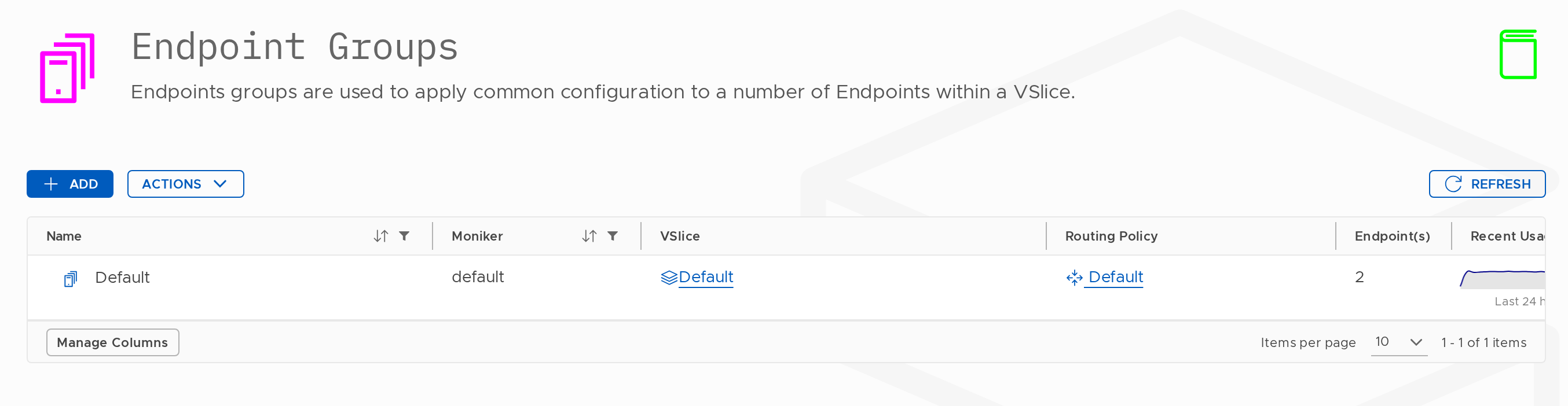
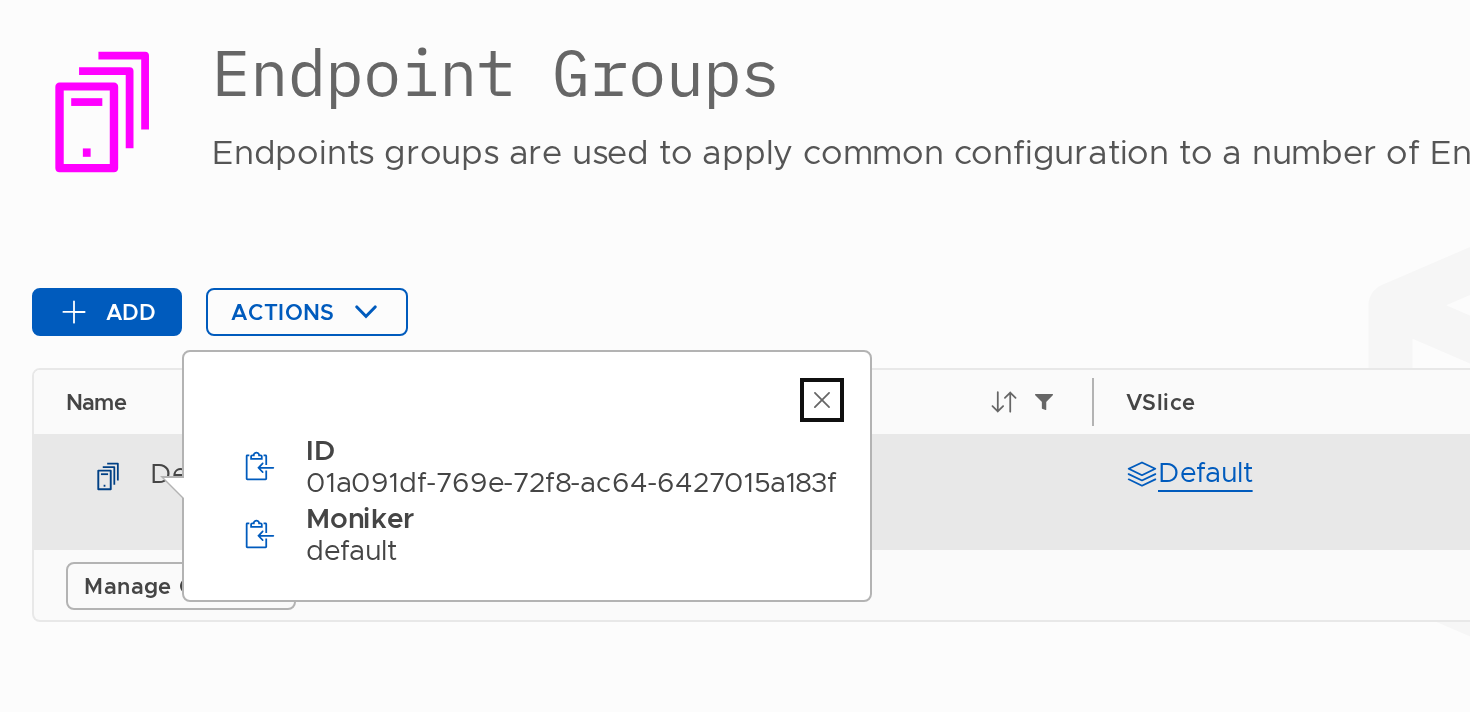
You can view the ID and Moniker of an endpoint group by clicking the signpost icon.
The list shows all groups on your account, with their type (Primary/Secondary), associated VSlice, and endpoint count.
From this screen you can:
- Create new Endpoint Groups
- Edit existing groups
- View a group's details, usage, events, and secondary group associations
- Delete groups that are no longer needed
Add an Endpoint Group
Create a new Endpoint Group to apply a network configuration to a set of endpoints.
Prerequisites
Before creating an Endpoint Group you need, at minimum:
- A VSlice with at least one IP subnet configured
- At least 1 Regional Policy already setup
Operator Policy and Event Map are optional.
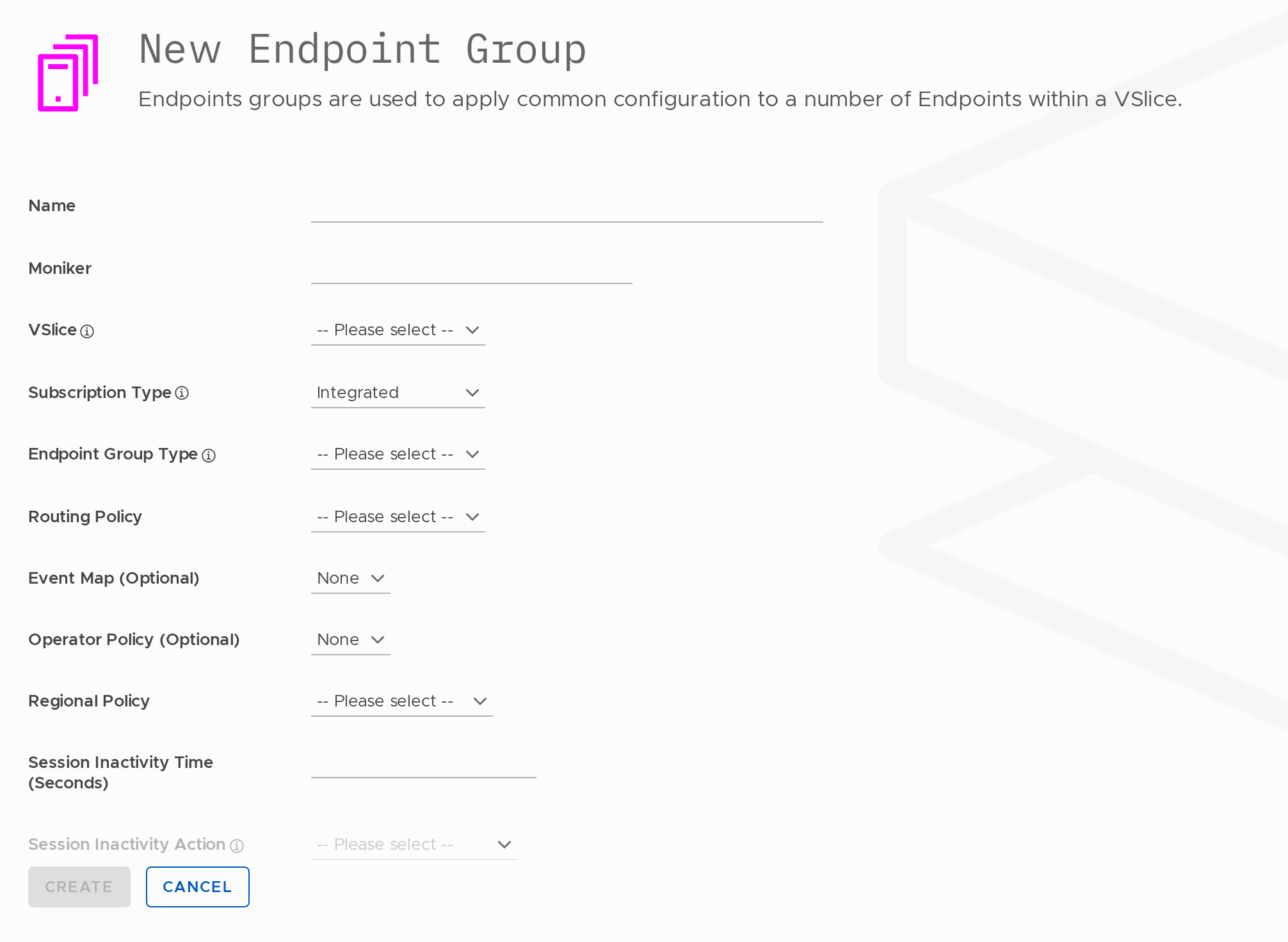
Steps
- Go to Inventory → Endpoint Groups.
- Click the Add button.
- Fill in the fields below.
- Click the Create button to save.
Field Reference
| Field | Required | Changeable after creation? | Notes |
|---|---|---|---|
| Name | Yes | Yes | A human-readable label (2–100 characters). |
| Moniker | Yes | Yes | Used in the API to identify this group. Before changing, consider the impact on any systems that use the API. (5–30 characters) |
| VSlice | Yes | No | Determines the network environment. All Routing Targets, Policies, and subnets used by this group must belong to the same VSlice. |
| Subscription Type | Yes | No | The billing subscription for endpoints in this group. |
| Endpoint Group Type | Yes | No | Primary or Secondary. Determines whether the APN comes from the VSlice (Primary) or is set on the group (Secondary). |
| APN | Only for Secondary | Yes | The APN for this Secondary group. APNs are defined on the VSlice — the APN you enter must conform to the VSlice APN pattern (e.g. *.flex). Each group (Primary and all Secondaries) must have a different APN. |
| IPv4 Subnet | No | No | The subnet from which endpoint IPs are allocated. Must be a subnet defined in the VSlice. Cannot be changed after the group is created. |
| Routing Policy | Yes | Yes | Controls how endpoint traffic is routed. |
| Event Map | No | Yes | Controls which events are generated for endpoints in this group. |
| Operator Policy | No | Yes | Restricts or prefers specific mobile network operators. |
| Regional Policy | Yes | Yes | Applies geography-specific network rules. |
| Session Inactivity Time (seconds) | No | Yes | How long an idle session is tolerated. Leave blank to disable. |
| Session Inactivity Action | Yes | Yes | Notify or Notify and Terminate |
VSlice, Subscription Type, and Endpoint Group Type cannot be changed after the group is created. Plan these carefully. If you need to change them, you must create a new group and reassign your endpoints to it.
After Creating the Group
Once the group is saved, you can:
- Assign endpoints to it to make them Active
- If this is a Secondary group, associate it to a Primary group from the Primary group's detail view
Edit an Endpoint Group
Update the configuration of an existing Endpoint Group.
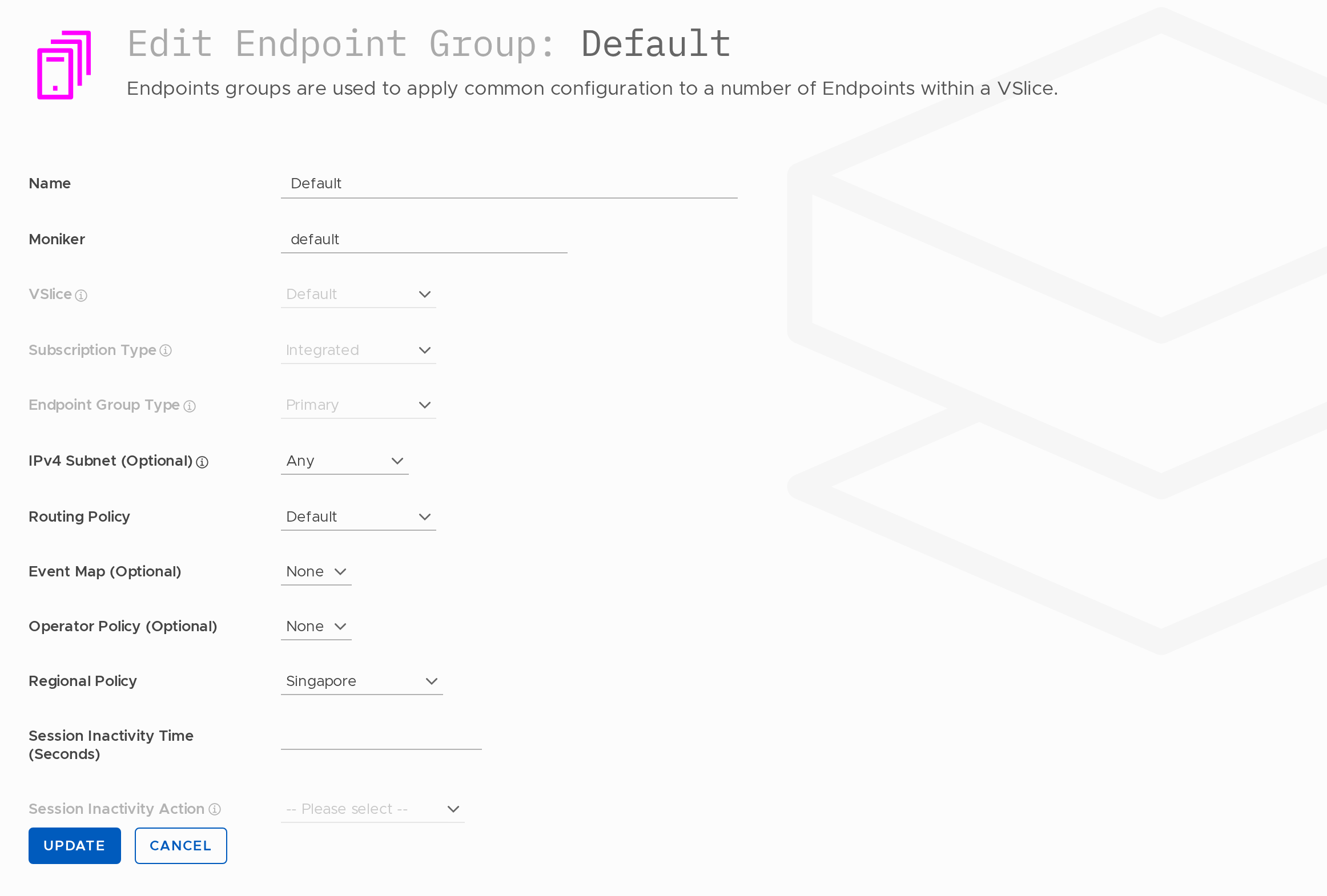
Steps
- Go to Inventory → Endpoint Groups.
- Click the edit icon next to the group you want to edit.
Editable Fields
| Field | Notes |
|---|---|
| Name | Can be changed. |
| Moniker | Can be changed. Before changing, consider the impact on systems that use the API. |
| Routing Policy | Changes apply immediately to all endpoints in the group. Existing sessions may be disrupted if the new policy has different routing rules. |
| Event Map | Can be changed or cleared. |
| Operator Policy | Can be changed or cleared. |
| Regional Policy | Can be changed. |
| IPv4 Subnet | Cannot be changed after the group is created. |
| Session Inactivity Time | Can be changed or cleared. |
| Session Inactivity Action | Can be changed. |
VSlice, Subscription Type, and Endpoint Group Type cannot be changed after creation. If these need to change, create a new group and reassign endpoints.
Click Update to save.
Note on Routing Policy changes: When you save a new Routing Policy, all endpoints in the group begin using the new rules immediately. If any endpoints have active data sessions, those sessions are not automatically ended — but subsequent traffic is routed according to the new rules. Depending on the change, this may cause disruption to active connections. Plan changes accordingly.
View an Endpoint Group
Inspect the configuration, usage, events, and secondary group associations of an Endpoint Group.
Steps
- Go to Inventory → Endpoint Groups.
- Click the view icon next to the group you want to inspect.
Tabs
Details Tab
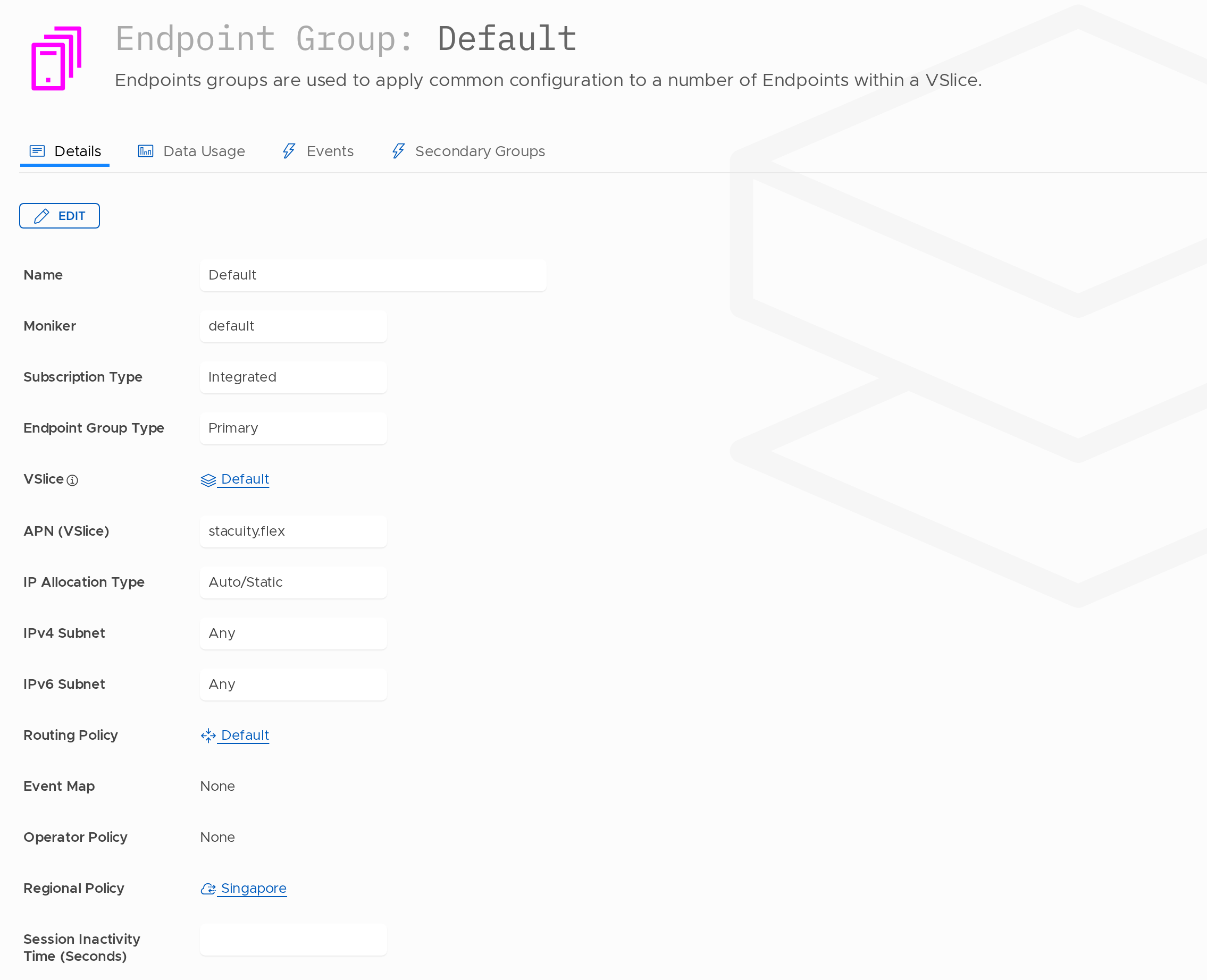
Shows the group's full current configuration:
| Field | Description |
|---|---|
| VSlice | The network environment this group operates within |
| Endpoint Group Type | Primary or Secondary |
| APN | For Secondary groups: the APN configured on this group |
| Routing Policy | The current routing policy |
| Operator Policy | The current operator policy (if any) |
| Regional Policy | The current regional policy |
| Event Map | The current event map (if any) |
| Session Inactivity Time | Idle session threshold |
| Session Inactivity Action | Action on idle: Notify or Notify and Terminate |
| Endpoint Count | Number of endpoints currently in this group |
Secondary Groups Tab
Available on Primary groups only.
This tab shows which Secondary Endpoint Groups are currently associated to this Primary group. It is also where you associate new Secondary groups.
To associate a Secondary group:
- Open a Primary group's detail view.
- Select the Secondary Groups tab.
- Click Add Secondary Group.
- Select the Secondary group from the list.
- Save.
Once associated, endpoints in this Primary group gain access to the Secondary group's APN and routing configuration. The Secondary group begins carrying traffic for the appropriate APN immediately.
A Secondary group can only be associated to one Primary group at a time.
→ See Multi-APN Support for a full explanation of when and why to use Secondary groups.
Data Usage Tab
Aggregate data consumption for all endpoints in this group, across configurable timeframes (Today, Last 7 days, Last 30 days, This billing period).
Useful for monitoring group-level consumption trends and spotting unusual spikes before they affect your billing.
Events Tab
All events generated for endpoints in this group, in reverse chronological order. Use the event type and date filters to narrow results.
This gives you a group-level operational view — equivalent to running the Event Viewer filtered by this group.
Delete an Endpoint Group
Remove an Endpoint Group that is no longer needed.
Steps
- Go to Inventory → Endpoint Groups.
- Click the delete icon next to the group you want to remove.
- Confirm deletion in the confirmation dialog.
Before You Delete
An Endpoint Group cannot be deleted while it contains endpoints. Move all endpoints to another group, or terminate them, before deleting the group.
Secondary groups must be disassociated from their Primary before either can be deleted. Open the Primary group, go to the Secondary Groups tab, and remove the association first.
Deletion is immediate and irreversible. The group's configuration is lost. Endpoints that were in the group are not deleted — they remain on your account in whatever state they were in.
Updated 13 days ago