
Operator Policies
Operator (steering) policies control which operator networks are accessible and/or preferred by endpoints.
What is an Operator Policy?
An Operator Policy defines which Mobile Network Operators (MNOs) your endpoints can attach to and which they should prefer. When an endpoint tries to attach to a network, the Operator Policy determines whether that attachment is allowed, rejected, or steered towards a preferred network.
Without an Operator Policy, endpoints connect to whichever network the SIM profile allows, typically the best available signal. An Operator Policy gives you explicit control over that decision.
When to Use an Operator Policy
Reduce roaming costs: Different MNOs charge your connectivity provider different wholesale rates. Steering devices to a preferred partner network in a given country can save significant money on large international fleets.
Some regulated industries require that data remain within a specific jurisdiction or country.
Guarantee consistent behaviour: If your application depends on specific network features or a particular network's coverage characteristics, you can steer endpoints to that network.
Prevent unwanted roaming: Ensure endpoints in a particular region only ever connect to networks in that region.
Vantiq Motors Example
Vantiq Fleet has negotiated preferential wholesale rates with a specific partner network in Germany and France. Without an Operator Policy, HGVs crossing into those countries connect to whichever network has the strongest signal. Vantiq creates an Operator Policy that steers devices to the preferred partner network in those countries, reducing roaming costs.
How Operator Policies Work
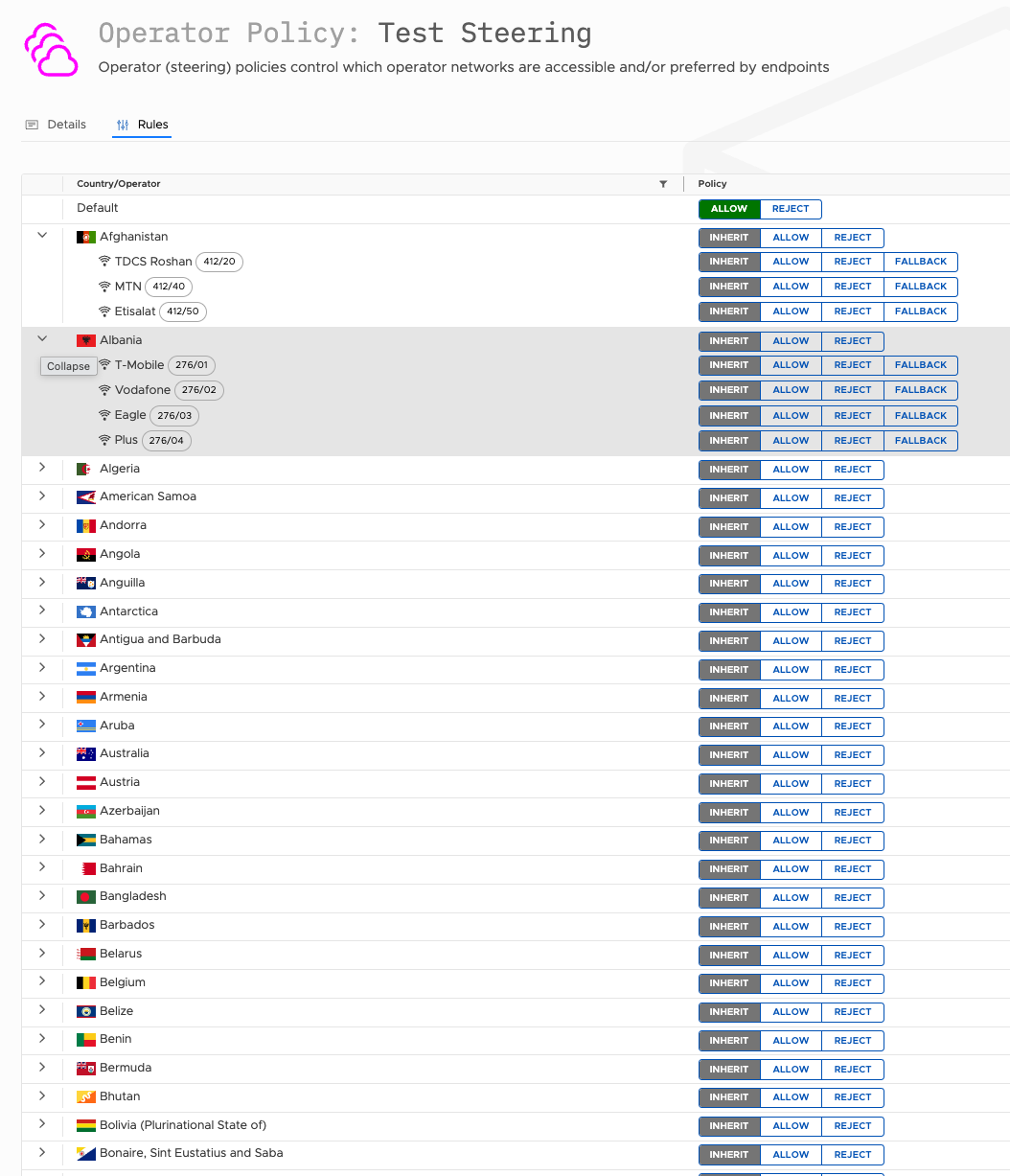
The Rules tab displays every country in the world, expandable to show individual operators within each country (identified by their MCC/MNC codes). For each country and operator you set a policy by clicking the appropriate button.
At country level:
- Inherit: use the Default policy set at the top of the rules list
- Allow: permit attachment to any operator in this country
- Reject: block attachment to any operator in this country
At operator level (within a country):
- Inherit: use the country-level setting
- Allow: permit attachment to this specific operator
- Reject: hard-block this specific operator
- Fallback: allow attachment to this operator only if all preferred operators are unavailable
The Default row at the top sets the blanket policy for any country or operator not explicitly configured. Set Default to Allow to build a reject-list (block specific networks, allow everything else). Set Default to Reject to build an allow-list (allow specific networks, block everything else).
Steering Behaviour
When an endpoint is in a country where you have configured preferred operators, Stacuity will reject attach attempts on non-preferred networks up to 10 times in order to steer the device towards the preferred operator. If the device attempts to attach an 11th time without connecting to a preferred network, the attach is permitted on whatever network is available.
This means you can steer devices without the risk of completely blocking connectivity. If you want to hard-block a specific network entirely, use Reject at the operator level. That operator will always be blocked with no fallback.
Note: Operator Policy steering and blocking operates at the HLR (Home Location Register) level. This is a core network feature available to integrated accounts. Edge account customers should check with their tenant regarding operator steering capability.
Note: This feature can be disabled at the request of your tenant. If you do not see Operator Policy options in your portal, contact your tenant administrator.
Where to Find Operator Policies
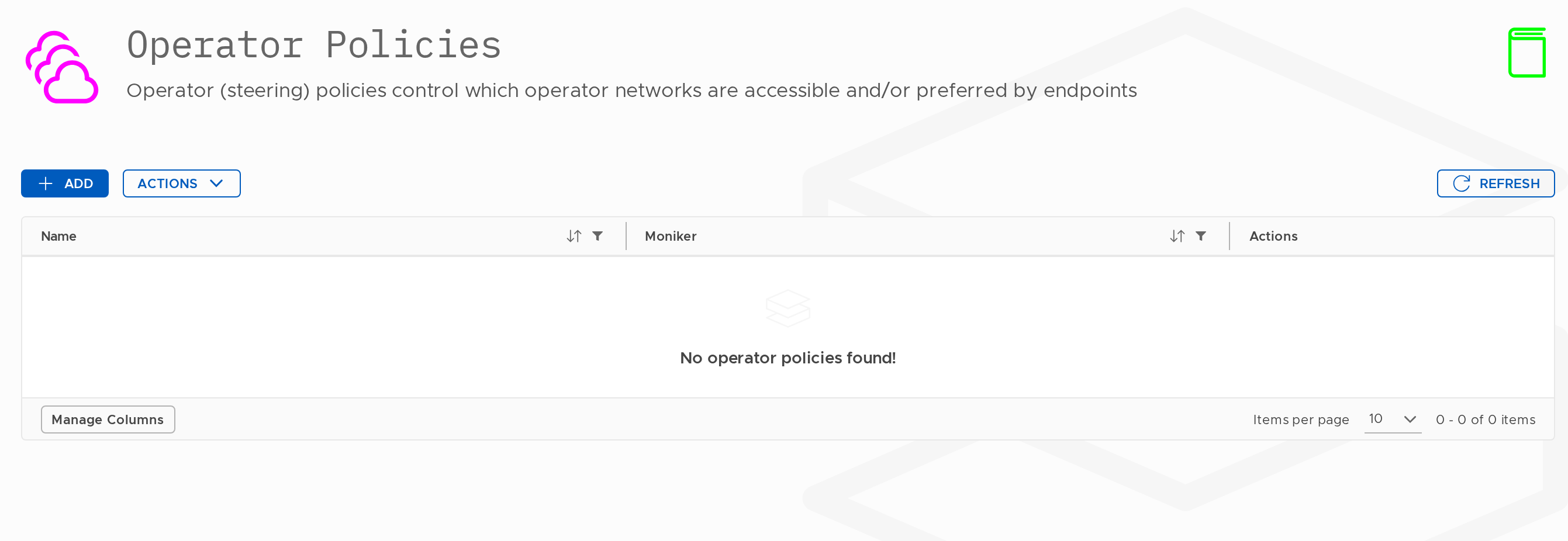
Navigate to Configuration → Operator Policies.
The list shows each policy's Name and Moniker. From this screen you can create, edit, and delete operator policies.
Create an Operator Policy
Steps
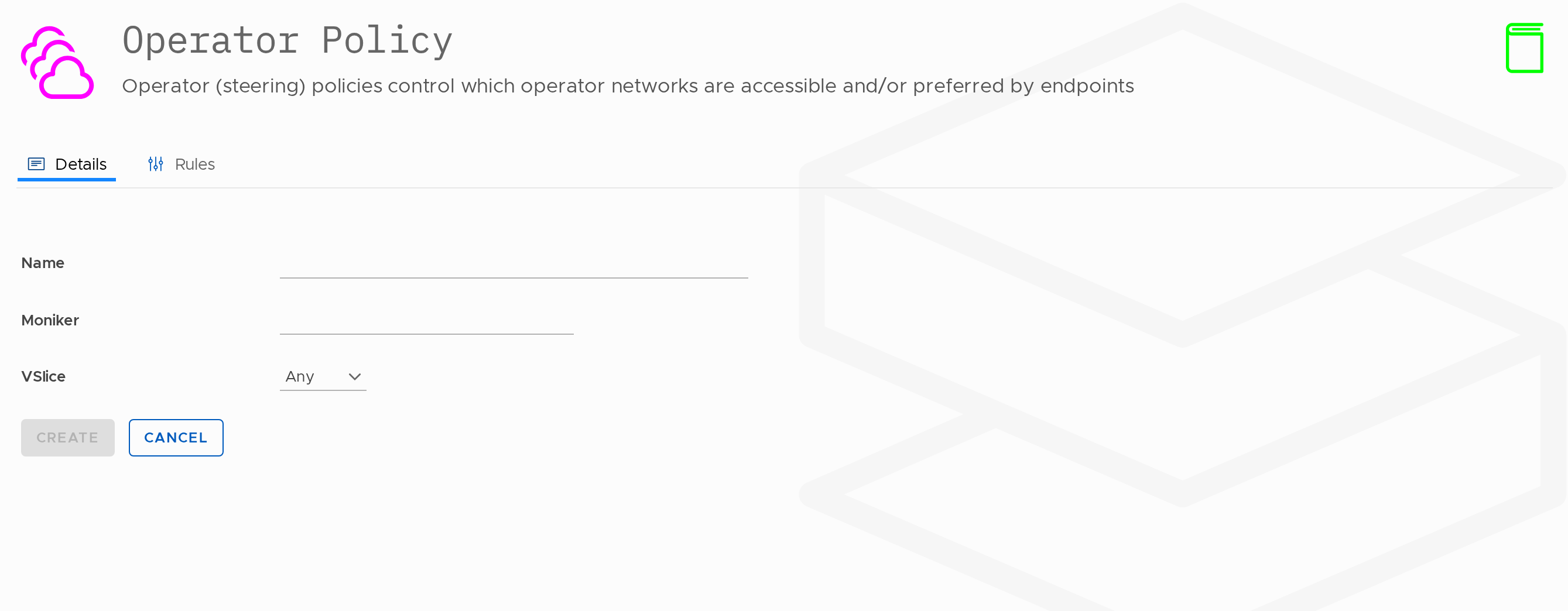
- Go to Configuration → Operator Policies.
- Click Add.
- Fill in the fields and click Create.
- After creation, open the Rules tab to configure per-country and per-operator settings.
Fields
| Field | Required | Changeable? | Notes |
|---|---|---|---|
| Name | Yes | Yes | 5–50 characters. |
| Moniker | Yes | Yes | Used in the API. |
| VSlice | No | Yes | Defaults to Any. Restrict to a specific VSlice if needed. |
Configuring Rules
After creating the policy, open the Rules tab. The rules table lists every country in the world, expandable to show individual operators. For each row, click the appropriate button to set the policy.
Start with the Default row to set the blanket behaviour, then expand individual countries or operators to override where needed.
Changes take effect on the next network attachment for each affected endpoint.
Assigning to an Endpoint Group
Once created, Operator policies can be assigned to an Endpoint Group via Inventory → Endpoint Groups → Add/Edit → Operator Policy.
Edit an Operator Policy
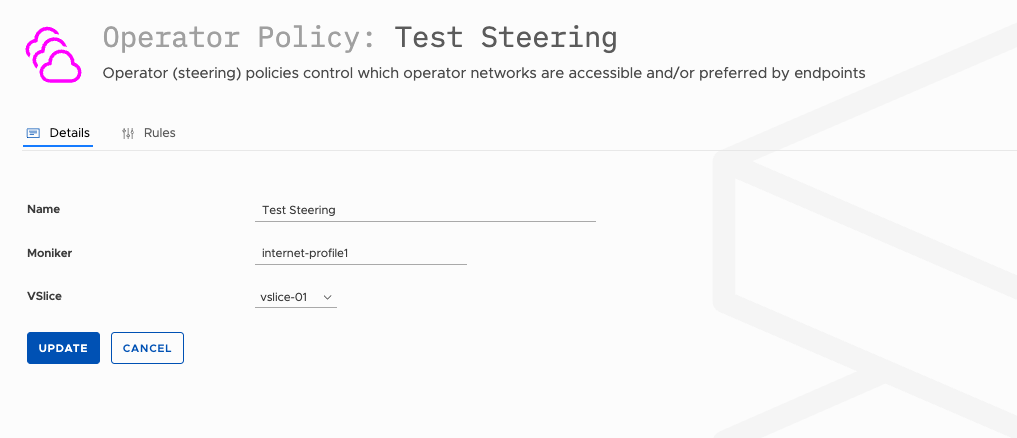
- Go to Configuration → Operator Policies.
- Click the edit icon next to the policy.
- Update the Name or Moniker on the Details tab, or switch to the Rules tab to adjust per-country and per-operator settings.
- Click Update.
Delete an Operator Policy
- Go to Configuration → Operator Policies.
- Click the delete icon next to the policy.
- Confirm deletion.
Updated 13 days ago