
Edge Services
Edge Services provide the ability to interact with services that relate to, or are exposed by, the individual Endpoints.
What is an Edge Service?
An Edge Service is a Remote Access Proxy configuration that exposes a web interface running on an endpoint device, making it accessible from any browser without a VPN client or public IP address.
When enabled, Stacuity acts as a proxy between your browser and the device. You open a unique URL; Stacuity forwards the request over the private network to the device and returns the response. The device never needs a public IP, and the person accessing it needs no VPN software. The endpoint sits behind carrier-grade NAT and Stacuity sets up a tunnel between its HTTP proxy and the device to make this work.
The Two Access Modes
Edge Services work alongside the Edge Services tab within a Routing Policy, which enables two ways to access an endpoint device remotely.
Remote Access Proxy
A browser-accessible proxy to an HTTP or HTTPS web interface running on the device. Used for vehicle diagnostic UIs, IoT gateway management consoles, charger management interfaces, or any device with a built-in web UI.
You specify the protocol and the port the device's web UI listens on. Stacuity creates a unique per-endpoint URL. You can create multiple Edge Services per Endpoint Group, for example:
- Port 80: the device's own admin UI
- Port 8081: a peripheral device connected to the router, accessed via the router's port-forwarding rules
This lets you access both the primary device and any attached peripherals through the same mechanism, all without a VPN or public IP.
Embedded Terminal
A browser-based SSH terminal directly to the device. No separate Edge Service record is required. The Embedded Terminal toggle in the Routing Policy's Edge Services tab is sufficient.
Setup Sequence
Remote Access Proxy requires two steps in order:
Step 1: Create an Edge Service in Configuration → Edge Services. Specify the protocol, port, and authentication settings for the device's web UI.
Step 2: Enable Remote Access Proxy in the Routing Policy's Edge Services tab and select the Edge Service you just created.
If you try to enable Remote Access Proxy in the Routing Policy before creating an Edge Service, you will see: "You must have at least one remote access proxy configured." Create the Edge Service first.
Where to Find Edge Services
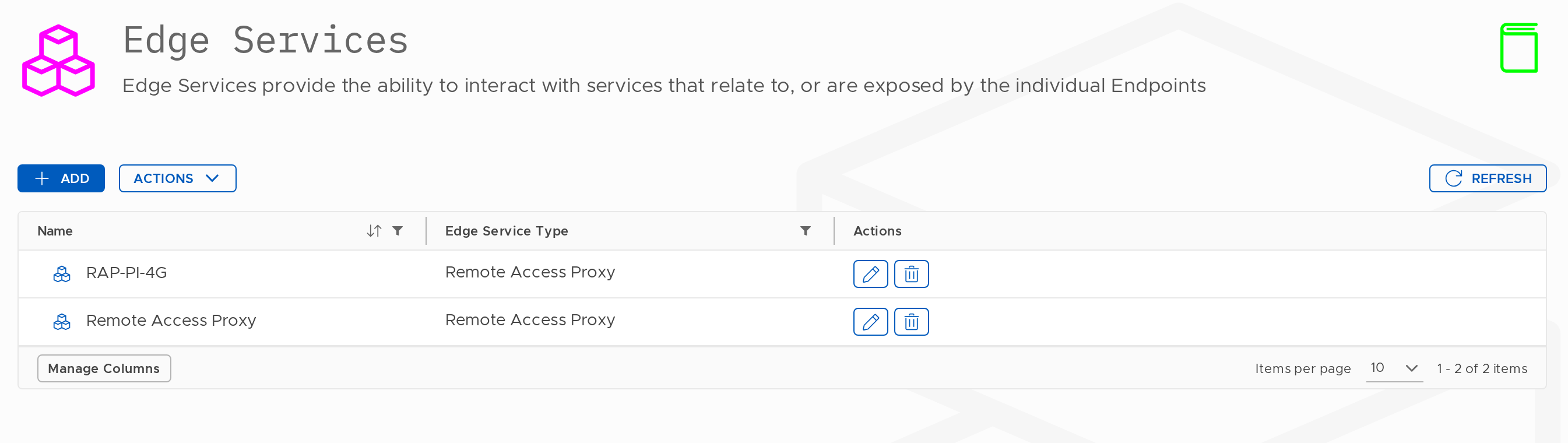
Navigate to Configuration → Edge Services.
The list shows each service's Name and Edge Service Type. From this screen you can create, edit, and delete Edge Services.
Create an Edge Service
Steps
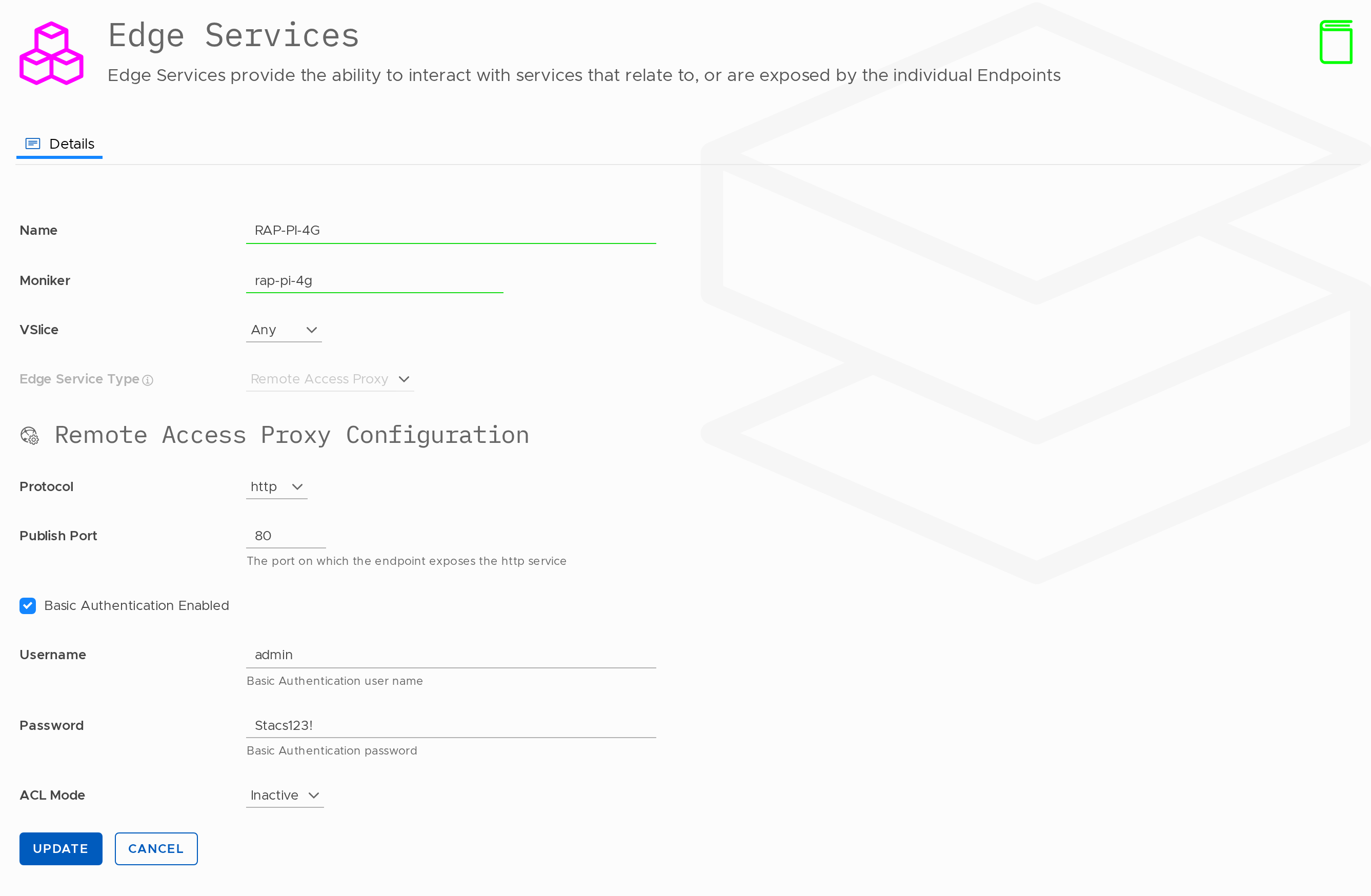
- Go to Configuration → Edge Services.
- Click Add.
- Fill in the fields and click Create.
Fields
| Field | Required | Notes |
|---|---|---|
| Name | Yes | 5–100 characters. |
| Moniker | Yes | 5–30 characters. Used in the API. |
| VSlice | No | Defaults to Any. Restrict to a specific VSlice if needed. |
| Edge Service Type | Yes | Currently only Remote Access Proxy is available. |
Remote Access Proxy Configuration
Once Edge Service Type is set to Remote Access Proxy, the following additional fields appear:
| Field | Required | Notes |
|---|---|---|
| Protocol | Yes | http or https: the protocol the device's web UI uses. |
| Publish Port | Yes | The port on which the endpoint exposes the http/https service (e.g. 80, 443, 8080, 8443). |
| Basic Authentication Enabled | No | Enable to require a username and password when accessing the proxy URL. |
| Username | Only if Basic Auth enabled | Basic Authentication username. |
| Password | Only if Basic Auth enabled | Basic Authentication password. |
| ACL Mode | No | Access control list mode. Defaults to Inactive. |
Next Step
After creating the Edge Service, go to the Routing Policy you want to enable Remote Access Proxy on:
- Configuration → Routing Policies
- Click Edit on the relevant policy
- Go to the Edge Services tab
- Enable Remote Access Proxy and select this Edge Service
Once done, the proxy URL appears on each endpoint's Remote Access tab.
Edit an Edge Service
- Go to Configuration → Edge Services.
- Click the edit icon next to the service.
- Update any fields and click Update.
Changing Protocol or Publish Port takes effect immediately. Any active proxy sessions using this Edge Service will need to be re-established.
Delete an Edge Service
- Go to Configuration → Edge Services.
- Click the delete icon.
- Confirm deletion.
Updated 6 days ago