
SIM Activation
Register a new physical SIM card as an endpoint on your account.
Activate SIMs
Register a new physical SIM card as an endpoint on your account.
When to Use This
SIM Activation is for registering a physical SIM card that you have in hand, using its ICCID and Activation Code. You would use this if your tenant has given you individual SIM cards to self-register.
In most deployments, you won't need this. Tenants typically bulk-allocate SIM ranges directly to your account — your endpoints appear in Inventory → Endpoints automatically with status Pending, with no action required on your part.
The Activate SIMs screen handles the exception case where a customer is self-registering individual cards.
Where to Find It
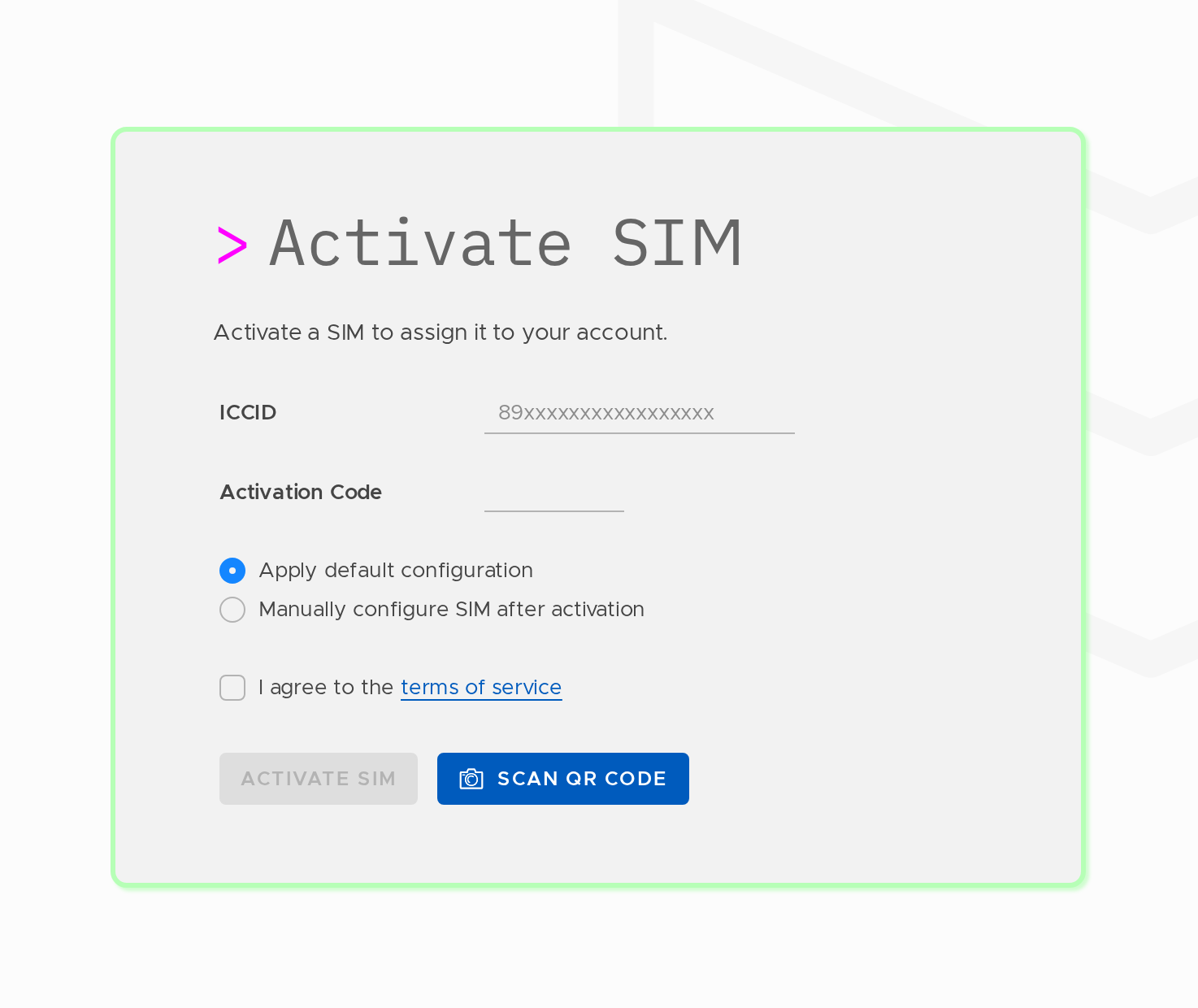
Navigate to Inventory → Activate SIMs.
Steps
- Enter the ICCID — the 18–22 digit identifier printed on the SIM card or its packaging.
- Enter the Activation Code — provided with the SIM by your tenant.
- Choose how to configure the SIM after activation:
Option A: Apply default configuration
Stacuity automatically creates a VSlice, Endpoint Group, Routing Target, and Routing Policy, and activates the SIM immediately with a basic internet breakout. The SIM will be Active straight away.
Use this when: You want to get connected immediately and configure properly later. The default configuration gives you a working internet connection with no setup required.
Option B: Manually configure after activation
The SIM appears in Inventory → Endpoints with status Pending. No network configuration is applied yet. You then assign it to an existing Endpoint Group yourself.
Use this when: You already have your VSlices, Routing Policies, and Endpoint Groups set up, and you want the SIM to go directly into the right group rather than inheriting a default configuration.
- Accept the Terms of Service.
- Click Activate SIM.
APN Configuration
Depending on your device firmware and the mobile network, you may need to configure the APN manually on the device.
Always check whether the APN needs to be set manually in the device's network settings, and configure it to match the APN of your VSlice. If you are unsure, contact your tenant — they will confirm the correct APN for your account.
Note: Automatic OTA APN provisioning is not universally supported. Unless your tenant has specifically advised that OTA APN configuration is in use on your account, always verify and manually configure the APN on the device.
What Happens Next
If you chose default configuration: The SIM is now Active. It will connect to the internet when the device powers on and attaches to a network. Review the auto-generated configuration and update it to match your requirements.
If you chose manual configuration: Go to Inventory → Endpoints, find the newly activated SIM (it will be Pending), and assign it to an Endpoint Group.
Updated 13 days ago