
Copy of Endpoints
Manage individual devices with SIM cards and eSIMs provisioned on your Stacuity account.
An Endpoint represents a physical device that has a single SIM card (physical or eSIM) on your account. It is the smallest unit of connectivity managed in the portal.
Every endpoint has:
- An ICCID — the permanent, globally unique identifier printed on the SIM card or encoded in the eSIM. This never changes.
- One or more IMSIs — the network identities used when the device attaches to a mobile network. A single SIM can carry multiple IMSIs (for example, a multi-IMSI eSIM that can roam across different networks). The portal treats the endpoint as one logical unit regardless of how many IMSIs it holds. It's worth noting that you cannot orchestarate IMSI (turn on/off IMSI).
- A lifecycle state — the endpoint's current operational status (see below)
- An optional Name, Tags, and Reference — for your own identification and filtering
An endpoint on its own cannot pass traffic. It must be assigned to an Endpoint Group to receive a network configuration and become active.
Vantiq Motors — Example
Vantiq Connect manages eSIMs embedded in connected passenger vehicles at the point of manufacture. Each vehicle leaving the factory has a single eSIM — one endpoint in the portal. It arrives as Pending: allocated to the Vantiq Connect account, but not yet configured. The moment a vehicle is commissioned and its eSIM is assigned to the
vantiq-connect-eugroup, it becomes Active and the vehicle begins sending telematics data and receiving OTA software updates automatically.
Endpoint Lifecycle States
Every endpoint is always in exactly one of the following states. The state determines whether the endpoint can pass traffic and what actions are available on it.
| State | What it means | Can pass traffic? | Reversible? |
|---|---|---|---|
| Pending | Allocated to your account, not yet in a group | No | Yes, assign to a group |
| Active | In a group, fully provisioned, able to pass data | Yes | Yes, suspend or terminate |
| Idle | Active, attached to a network, but no current data session | No active session | Yes, device will create session when ready |
| Detached | Active, but not seen on any mobile network | No | Yes, device will re-attach when in coverage |
| Suspended | Temporarily disabled. Any active session ends immediately | No | No |
| Terminated | Permanently disabled | No | No, requires support ticket within 90 days |
State transitions
[Tenant allocates SIM]
        │
        ▼
    Pending ──────────────────────────────────┐
        │                                     │
  [Assign to group]                           │
        │                                     │
        ▼                                     │
    Active                    Suspended       │
        │                         │           │
        │                         │           │
        └──────────┬──────────────┘           │
                   │                          │
             [Terminate]              [Terminate]
                   │                          │
                   ▼                          │
              Terminated ◄────────────────────┘
On Termination: Termination cannot be undone through the portal. The endpoint record is retained for 90 days, during which Stacuity support can attempt reinstatement if contacted. After 90 days, the record is deleted permanently. Always double-check before terminating, especially when bulk-acting on large numbers of endpoints.
Where to Find Endpoints
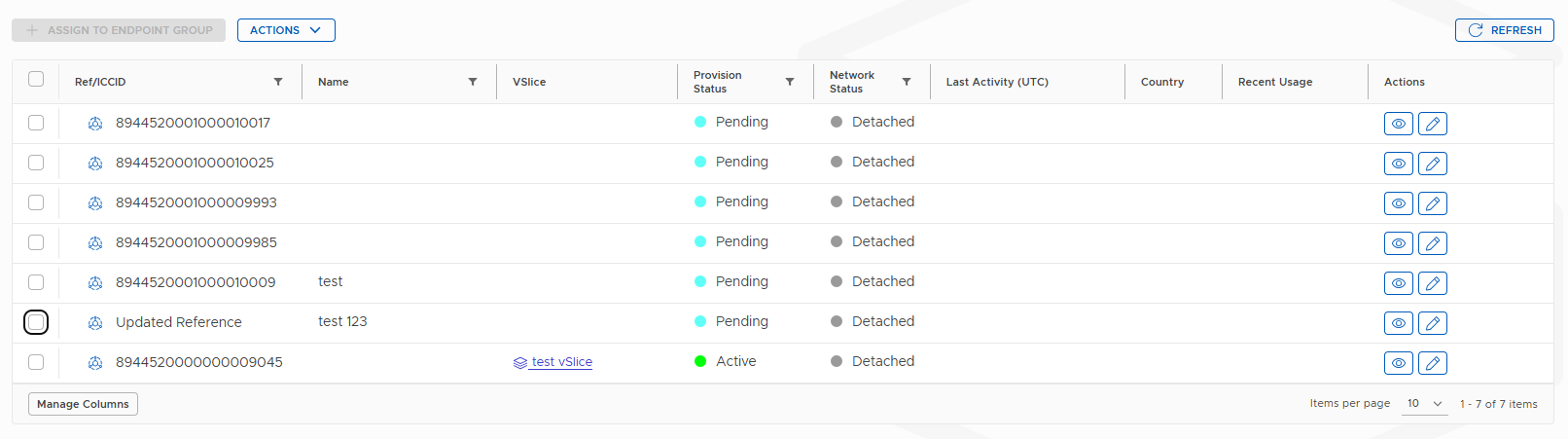
Navigate to Inventory → Endpoints.
The list shows all endpoints on your account. Each row displays the ICCID, name (if set), current state, assigned Endpoint Group, and last activity time.
Filtering and search:
| Filter | Use it to |
|---|---|
| Status | Show only Active, Pending, Suspended, etc. |
| Endpoint Group | Show all endpoints in a specific group |
| Tag | Filter by a tag you have applied |
| Search | Find by ICCID, name, or reference |
Actions
From the Endpoints list you can:
| Action | How | Notes |
|---|---|---|
| View details | Click the view icon or the ICCID | Opens the full endpoint detail view |
| Edit | Click the  edit icon edit icon | Update name, tags, static IP, IMEI lock |
| Assign to group | Tick one or more checkboxes → Assign to Group | Moves selected endpoints from Pending to Active |
| Suspend | Actions menu on the detail view | Blocks traffic immediately |
| Terminate | Actions menu on the detail view | Irreversible — confirm carefully |
Suspend and Terminate can also be applied to multiple endpoints at once by selecting them with the checkboxes before opening the Actions menu.
Updated about 3 hours ago